Showing posts with label iPad. Show all posts

Tuesday, October 21, 2014

Going back to the iPad after using Windows 8 Tablets. From a DevOPS Dad.


The picture above summarizes what I use my tablets for. As a convenient on-the-go device when I am out and about. I regularly take my kids out to the local play park on a daily basis. I'll pull up in a stroller and watch them play. Occasionally, I’d get a call to log into some remote Linux server in the cloud or query some database for a client report. In these instances, I don’t want to lug around my $3,400 laptop, a top-of-the-line 15” Macbook Pro Retina. A Macbook won’t fit inside the diaper bag or the stroller. After trying a bunch of Windows 8 All-in-Ones and convertible tablets (as chronicled on this blog), I've decided to go back to the iPad. The iPad Mini.

Pictured above are a Dell Venue 8 Pro, the iPad Mini Retina, and a 10" 1920x1200 HiDPI Lenovo Miix 2. With all the hype of convertible, do-it-all all in one and the allure of running native x86 software in a tablet, I mistakenly went for that sales pitch. I ended up getting a few devices I no longer use. Now, I decided I need something that simply works when I'm out and about. That device ultimately is an iPad.

Read On.


Thursday, May 29, 2014

Bargain Bin Electronics: G-Tech G-Connect 500GB


Here at fortysomegeek's blog, I like to cover out-dated, overlooked last year's electronics. Here, today, I am going to discuss Hitachi owned G-Technology's G-Connect 500GB drive. This was introduced at $200 initially and was recently blown out at Fry's electronics for $39.99.

So what is it? It is a 2.5" small NAS wi-fi (or you can use ethernet) media server/drive for your iPad/iOS devices or (in some case Android). It can also be used as a bulky portable 2.5" external drive.When introduced, it got scathing reviews and sure, I would hate it at $200 or even $100. But at $40, it is pretty fly and let me explain.


I was at Fry's and Fry's had boxed OEM Western Digital 500GB 2.5" SATA drives for $50 and right next to it on the same shelf were these G-Tech drives for $10 less. I figure if I didn't like it, I'd yank out the drive and use the drive internally.

Now here are the gripes I've read in many previous reviews. First, it has no battery and must be wired. Hence, it is not portable like many of the other competing devices. Sure, this is very true but I don't intend to use it as a portable device but if I did, I can always power it via a USB adapter. It will power just fine as a USB drive connected to a laptop. Secondly, it is USB 2.0 instead of USB 3.0. Thus, you don't want to use this as a portable drive due to the speed and bulkiness. Lastly, the set-up is not intuitive. Hence, all these complaints are valid but again, I got this for $40. So those other reviews slamming this product must be taken into context. At $200, I agree them but at $40, the expectations are different.


So here are the ports. Ethernet, USB, Wi-Fi-Toggle and Power. If you connect it as a USB drive, the NAS function doesn't work. You can extend this device but adding another drive. It has two modes: NAS media server or portable USB drive. You can use this either on 10/100 Ethernet or Wi-Fi. As a NAS, it will act as a hotspot to serve only media.

This drive supports HFS+ and you can use it as a TimeMachine backup server. Again for $40, that is cool. It also supports iTunes and DLNA streaming. You can set up a folder, throw a bunch of movies into it and have it accessible via iTunes Share and/or DLNA. It also acts as a normal AppleTalk share file server. Not bad but not great. It isn't super fast but it gets the job done.


The mobile apps (iOS and Android) are very out-dated. It doesn't support iPhone 5(s) higher resolution so you will get cropped letter-boxing. The Android app crashes on every Android device I have so I can't comment. The iPad app works great as it appears to be the main focus. For Windows 8 and Android work-around, you can always use any DLNA client instead of the app to get your streaming fix. It will stream whatever your device supports. E.G. h2.64 mostly. WMV files won't stream to an iPad but I had not problems streaming to a Windows tablet or my Android phone. It works with ChromeBooks using HTML browser interface but the playback was choppy even connected to Ethernet.


Overall, the only complaint I have is the lack of multiple user login accounts. You are either admin or guest.

Now for my real reason for getting this device. I can easily re-produce all the functionality of this device around the house. My biggest usage is PLEX at home and the problem with PLEX is that it is advertised to anyone on my home network. My 6 year old can easily call up PLEX on his tablet, Chromebook, iOS device and watch any movies on his own. I wanted a private media server for my stuff which the kids don't have access to. So instead of setting up something completely new, this solved my problems. At $40, it was a no brainer. If I want something on it, I mount it as an Apple Share and copy files over or in rare situations, plug it in as a USB drive. I'll probably pick another one up when it goes back on sale again. The going price for this is $55-65 in the discount bin of most retailers.


Thursday, October 31, 2013

Anker 25W 5 Port USB Wall Charger.

This is a pretty nifty USB 5 port charger currently selling for $20 at Amazon.

Made by Anker, it is fairly compact (3.8" long, 2.4" wide, 1" high). What is cool about this device is it can charge multiple high power USB devices like the iPad and Samsung Galaxy Tabs simultaneously.   A single iPad or TAB  normally require more juice than your normal USB chargers yet this device can power 3 high AMP USB devices and 2 normal devices all from the same box. In fact, it is even labelled for each device. 

There are two iPad 2.1 Amps (highest output) ports, one single Samsung Tab 1.3 Amps ports, and two 1 Amp ports for iPhones, other Android phones, or any other regular USB accessory.

It is important to remember, this is rated at 5V/5A. The combine number of devices cannot exceed 5A . With two iPads, the most you can connect is probably 2 more normal devices like another two iPhones.


Here it is next to a Logitech mouse.


The real test, an iPad, 7" Samsung Tab and a Galaxy Nexus are all charging from the same charger.


It is strange that they call it a Wall charger when it is actually a brick with a small AC cable. However, that isn't a big deal for me. 


Overall, I really like this and this is ultra convenient for multiple devices. $20 isn't bad considering many 2.1 AMP USB chargers go for that much.


Sunday, April 14, 2013

Next wanted iPad killer feature. HDMI Lightning MHL Video Input


I've been thinking long and hard about what would motivate me to upgrade to the next iPad. Media outlets are reporting the spiraling decline of PC sales as consumers are no longer upgrading their PCs every other year. Why upgrade when your existing computer works just fine. There will be a point when people will be genuinely content with their existing mobile device and do not feel the urge to upgrade their tablet every generation.

There is one killer feature I would like to see and that is Target Display Mode on the iPad. The picture above is an iPad using Wi-Fi video tethering to act as a secondary extended display for my Macbook. I'm running HiDPI mode so I am in essence getting a portable cinema display with the same desktop real estate as my 27" monitor.

Target Display Mode would take it to the next level as it would be a physical connection.
Many of the Macs have it and it will be a compelling feature to sell more iPads. If there is something that would push sales, a new unique hardware feature is all that is needed. Target Display Mode is a feature that allows iMacs turn themselves into secondary screens for other macs.  Hence, this is not a far fetched idea. Apple has already done it in the past. If Apple ever implemented this, I would immediately plan to upgrade to the next 128GB LTE version and get myself an additional low-end 16GB wifi only.

I've thought about this feature long and hard when I got my GeChic portable HDMI MHL monitor. I've also used Wi-Fi video tethering apps and then I ordered myself a discounted Motorola LapDock for hacking purposes. The LapDock has been known to be re-used as secondary displays.

There are even companies abroad selling the same size 9.7" iPad 2 LG displays as portable MHL monitors.


Now, wouldn't it be awesome if there was an HDMI to Lightning dongle that provided video input. With an app or system preference,the iPad can toggle itself into a monitor (ala Target Display Mode). I know many pro-photographers and videographers would snap up extra iPads to use as remote displays. I know a lot of road-warriors would definitely pick up a new iPad just for this feature. This and this alone is a big bullet selling point.

Heck, make the HDMI dongle expensive to recoup the R/D cost. I'm willing to pay for it. I doubt Apple would embrace MHL but I figure 3rd party accessory makers can jump in with a white MHL-to-HDMI/Lightning adapter.

Someone at Apple, please make this happen! Please give the next iPad HDMI input / video-in.


Monday, March 4, 2013

GeChic on-lap 2501m portable 15" monitor review


This is an interesting and highly unique monitor that deserves a review.


Summary: This is a laptop screen without the laptop. It is a battery powered HD 1336x768 15.6" monitor with HDMI, MHL and optional VGA inputs. It runs off battery or powered via USB. In short, a highly portable spare 15" monitor. This monitor can be purchased from NewEgg for $250.

As you can see below, a single MHL cable is all that is needed to display from a Galaxy Nexus. Add a bluetooth keyboard and you have yourself a portable computer. The MHL cable even charges the phone. The picture above with the Macbook shows it can be used as a secondary display with HDMI. Everything is running off battery. It can be charged via USB as well.


Preface:

I was looking for a spare monitor for various projects I've been working on. No one sells a DVI/HDMI/VGA monitor under 15" anymore. Sure, you can get a used, refurb 15" Dell LCD on eBay that will be strictly VGA. There are a few 7-9" Liliputian monitors advertised as field monitors but they only have native resolution of 800x480/1024x600.

I thought about going the 720p TV route at the local Target/Walmart but those are still rather large. I also have a few small displaylink monitors that work great and only require a USB cable. Unfortunately, my Linux projects and old servers require VGA. I also have an itch to play with small embedded ARM devices like the Raspberry PI/MK802 Android sticks that require HDMI.
Hence my dilemma and it was easily solved by one company, GeChic.

They offer a 13" model for a modest $175 that accepts HDMI and is powered by USB.
Then, I saw a newer 15" model that was battery powered and also supports MHL (Mobile High DefLink) found in many new smartphones and tablets. Wow, this was the ticket to my dilemma.

And that is where we are now. Today, I'm going to give you my impressions of this highly unique product.

Impressions:

After reading many other reviews, this product addressed many of the shortcomings of the original 13" unit. It also appeared to be better than many of the Korean export Shimian MHL only 9.7" portable monitors. Unlike some of its competitors, this sports a 1336x768 resolution vs the Shimians or Liliputs at 1024x768 /1024x600. I'm not fond of that resolution but what else is there in this form factor? The GeChic are probably the best-in-class for this form factor.

Many of the other Korean/Chinese portable field monitors advertise being 1080p but when you read the find print, they are often only 1024x768 native and use scaling to accept 1080p video feeds. Translation, they look like crap.  This particular monitor will also take 1080p feeds and it also looks like crap. Any downsampling will give you a muddy image. It would awesome to get a Nexus10 or Ipad3/4 class monitor in the 9-15" size but those are not available. The GeChic will be fine for 720p content.

Physical:


The construction is rather cheap. There are Faux silver finishes and it has an extremely light feel. In fact, it is too light and brittle. This is essentially a laptop monitor without the laptop. The only thing protecting the screen is a flip-over plastic screen protector that acts as the base. You can get colorful replacement screen protectors in various colors.


All ports run off the right side of the front facing screen. Two micro speakers adorn the back.

As you can see, compared to an iPad, it is pretty big. In my opinion, it is rather large. 15.6" screen is pretty big to lug around as an accessory.


It pretty much comes with everything you need minus the VGA adapter. HDMI, USB,MHL cables, a USB Charger are all included. The green pieces you see are alternate base grips. There is also a smartphone holder clip you can attach to the front face.


Usage:
This monitor can be powered from USB (it also comes with a USB charger) or the built in battery. So far,everything is good except it did not come with a VGA adapter cable. That is another $13. The MHL port is a blessing and a curse. It charges my Galaxy Nexus and input videos in one single clean cable. Unfortunately, those cables are hard to find if you need a replacement. I could not find any extra dual-ended MHL cable online. All the ones I've seen are MHL-to-HDMI. So, if you lose the cable, good luck finding a replacement. HDMI is a standard micro HDMI-D that resembles a micro USB socket.


Onscreen display is standard affair. You can swap inputs, adjust brightness/contrast and the battery indicator is a nice touch.


Quality:

The screen is not going to blow your socks off. Actually,the display is mid-grade and offers a average adequate output. I knew this from the various reviews I've read. It is about the same quality as many 15.4-15.6 budget laptops you find at Staples or Best Buy in the 400 price range. It has similar quality to my wife's HP DV6 notebook.

Viewing angles is pretty much straight on. Colors are a bit muted. 1080p scaled resolution looks like crap. I guess it will be fine for watching movies off a Blu Ray player but I do not recommend it for text or computer usage at 1980x1080. It is best to stick with the default 1336x768 resolution.

Pictures below show how it would look like under a 1080p feed. Blurry. Native resolution at 1336X768 look fine and razor sharp.


However, average picture quality is not the reason to discount the product. The reason to buy this monitor is for the immense flexibility and portability.

I was imagining being able to use this as a portable monitor in the data-center; plugging into headless servers if needed. I could also turn my smartphone into a mobile workstation using MHL. The possibilities were endless. You can use this with XBOX/PS3 gaming consoles. Worst case scenario, you can use it as a portable secondary palette monitor. Most importantly, I no longer have to scramble and unseat an existing monitor to work on a project. Now, I could take out an old rack server or 10 year old PC in storage to refurbish in the garage with my battery powered GeChic.

Picture below is an excellent use case for this monitor. Connected to a MK802 Android stick and you have a portable workstation or thin client for fiddling around.


Battery Life: I've read claims of 6.5-9 hours from other various sources. Well, after 3 days of testing, I am getting well over 6 hours. I don't know how accurate the battery meter is but my phone shows it has been running over 8 hours with 1/2 charge left.


Unfortunately, it does take a while to charge up. Most use cases will probably entail using USB to power off your computer.


Competition and Conclusion:

DisplayLink monitors are the obvious direct competitors. Unfortunately, none of them can connect to a smartphone, XBOX, or DVD player. They're also problematic under Linux.  DisplayLink also uses USB to drive the video. More than often, video and gaming playback suffer under DisplayLink as it passes through the USB bus. You have none of those problems with this display.


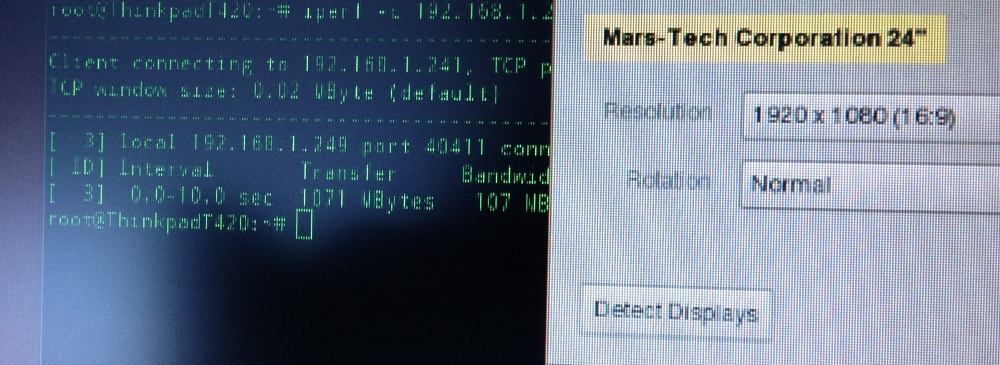
Mobile Linux users can now rejoice! It runs great off my Ubuntu Thinkpad T420. Nor more Xorg nonsense with DisplayLink.


Another competitor would be the Motorola Atrix lapdock. You can jury rig the Atrix lapdock with various adapters to make it a secondary HDMI display. It also has the added benefit of keyboard with some hardware fiddling. They're also cheap if you can find them but the issue I have is the lack of VGA.

Hence, the GeChic is an extroadinary unique device. I can see it being used for tradeshows. A mobile app developer using it demo mobile apps off smartphones and tablets. It can be used as part of a toolchest in the data-center. It can also be used as an on-site field monitor for a videographer or photographer. Or, it can be given to kids as a monitor for their gaming console. Again, the possibilities are endless.


Wednesday, February 20, 2013

Zagg Keys Flex Tablet Keyboard

The Zagg Keys Flex keyboard may be one of the best keyboards for the iPad.


At the time of this writing, the Zagg has them on sale for $39.99 from the regular $80.

So what makes it so great? Answer: portability and flexibility.

I have a few iPad keyboards and they work great for the most part. Except, they tend to get bulky and negate the advantage of having a tablet. Next, when you get a different tablet, the keyboards are often form-fitting for a specific generation of devices. You end up buying a different one when you get a new tablet. Importantly, the bulk wears you down. You may not need a keyboard/case combo all the time. When you are watching Netflix, you definitely don't need a keyboard. Hence, many of keyboards tend to fall into my desk drawer.


The Zagg Flex keyboard is compact and there is a simple cover that is used as a kickstand. The kickstand can even carry the weight of some covers. I don't have to remove the existing cover to use the kickstand. As you can see below, it is smaller than even the Apple Bluetooth keyboard.


Now, I just leave the keyboard in my bag and use it whenever I want.


Like most tablet keyboards, this one uses micro USB for charging. There is a toggle for iOS/Android. I assume this is for the key mappings for certain functions like home and menu.


Overall, this is very flexible. I can easily use my 7" Galaxy tablet or various smart phones. Overall, I am happy with this purchase.


Friday, November 16, 2012

Target Display Mode on Macs


I've written about Apple hardware has the unique ability to boot off another mac as an external drive. This is called Target Disk Mode and it is a great feature dating back over 10 years. You can read it here on my blog.

However, since late 2009, Apple now lets you use another Mac's monitor, specifically the 27" iMac varieties, as a secondary display. With a cable and a keyboard press, an iMac can be re-used as a second monitor.

This feature is aptly called, Target Display Mode. Apple posts info on it here: http://support.apple.com/kb/HT3924

Plug in a Thunderbolt/MiniDisplayPort cable on a macbook and connect to an iMac.
Then press Command-F2 on the iMac. Voila. a Spanning display for Macbook Pros and Macbook Airs.


Now, Apple needs to implement on this on iOS devices. In an earlier blog post, I wrote about using an iPad 3 as a portable Cinema Display Monitor-to-Go using software.

With the new digital Lightning connector on the iPhone and 4th gen iPads, they need to add Mobile Target Display Mode Pronto! 

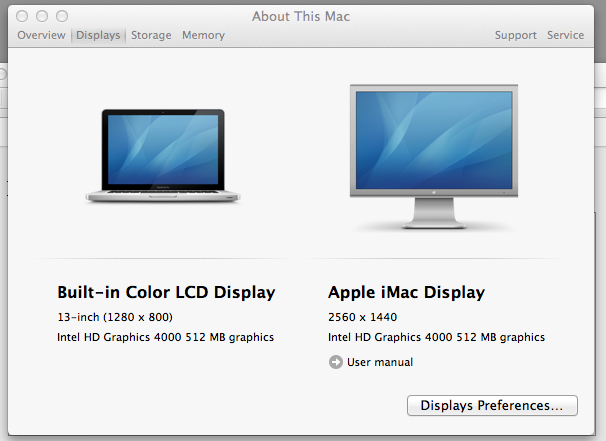
Imagine it below as it is pictured below (using Air Display). 2048x1536 via Thunderbolt-to-Lightning would kill off any DisplayLink adapters/hacks.


Tuesday, October 30, 2012

5 great iPad apps for Web Developers

I am often asked if the iPad can be used for real work. The iPad has been called a "recreational" tablet and it lacks a real productivity suite according to many detractors. Well, I don't use Microsoft Office in my day-to-day work activities so the appeal of a Surface RT like device does not appeal to me.
However, I do use an iPad because of its great connectivity features: LTE 4G, the ability to access Cisco IPSEC VPN, great remote access apps in the form of SSH, SFTP, X11, RDP, and VNC.
I use it in my data center to diagnose database servers, apache web servers, write code, fix problems in our network infrastructure. It has become part of my work tools.

Is an iPad a replacement for a laptop? It depends on what you use it for. I can attest to the great ability to quickly login remotely and fix something be it configuring a firewall, updating a MySQL database remotely, or executing a bash script. In short, it is definitely a tool in my arsenal I use for work. And quite frankly, I don't think there are much compromises.

Today, I am going to share some of those apps I use. I am going to concentrate on some great web development  apps.


I am going to concentrate on these apps:
iSSH, GustoTextastic, MySQL Mobile Database Client, and iMockups


There are many other great apps but I only want to cover 5 for brevity. In fact, one can choose other mySQL clients, mockup and diagramming apps but I wanted to show apps that take advantage of the iPad's real estate. I've seen many other apps on other platforms that are simply "blown-up" phone apps and that is not the way to go on a tablet.

iSSH

If there is only one app I have to rely on, it would be iSSH. I have used it for many years and it has saved my butt on many occasions. It is an awesome SSH client (and can even  be used as an X11 client). I've been called up in the middle of the night to reboot servers or restart dead daemon services. In short, it simply works. You can even use SSH keys. But the killer feature is the transparent keyboard and floating multi-gesture pop-up programmable cursors for use in the shell.

Like I said, if there was only one app to choose, this would be it. All I need is console access with VIM and nano and I'm set. I cannot stress how important the multi-gesture buttons are. When you are typing on a screen soft keyboard, you can quickly tab or arrow-up in an instant. It helps when you need to type really quickly in the console. For example, typing in service stop, I can quickly arrow up to repeat the command and service start. That is intuitive for someone who uses the shell and is acclimated to using arrow buttons on a keyboard.


Text Editors/IDE: Gusto & Textastic

Next, there are two text editors you should look at for the iPad. Gusto and Textastic. I originally used Textastic because it was the first text editor to support SFTP. This is important because all my servers are *NIX based (Linux/FreeBSD). Both have their strengths and weaknesses. Gusto now supports SFTP which gives it feature parity.

If you ever used Sublime 2 or themed your text editor in the Guber/Solarize themes, you will love both apps. Both can color code to make it extremely pleasant to read and edit code.

Both apps give you a full screen view and a file explorer panel view. Textastic is easier to swap views whereas the switch in Gusto is hidden in a modal dialog setting.

Here are screenshots of Gusto.


Now, the key feature Gusto has over Texstatic is the ability to organize by projects. You get visual thumbnail representations and each project are isolated from one another. In Texstatic, everything is seen in a directory view and you isolate your projects by subfolders.


Here are Texstatic screenshots:


Now, the one key killer feature that Texstatic has over Gusto is a built in Firebug option for the local preview. Firebug is pretty much essential for desktop developers. It is great to see it on a tablet.


With Firebug and a web inspector, you can analyze console javascript errors and evaluate DOM objects.

With Texstatic, you can pretty much use the iPad as a standalone device to develop HTML5/Javascript apps.
You only need access to a remote server in the case of developing Ruby/Python or PHP web apps. And the connectivity options will ensure you can connect easily to any Linux or VPS *NIX servers.
With an external keyboard, this makes the iPad an incredibly powerful and productive device.

Both apps with have their fans. Both are good at updating remote code when you need to.

For uber cross-platform geeks,  both apps are easily accessible by Linux distros. This is pretty important when compared to other devices on the market that have problems in Linux due to MTP. The iPad was pretty much plug-n-play on Ubuntu and Linux Mint. Dropping, copying, and synching files between Ubuntu and iOS 6 is a sweet.


The only thing that would both these two competing apps complete would be to include a version control mechanism. It would be awesome to have GIT capabilities in either apps.

MySQL Clients

There are countless number of good MySQL clients on the iTunes app store. I can't list them all so you need to test and try the one you like best.

MySQL Mobile Database Client is a fairly decent one that works pretty well. I often use just iSSH and access MySQL in the terminal but I understand people like GUI clients.

Once again, this apps shows the strength of iOS in terms of tablets specific apps. This app intuitively takes advantage of the screen instead of just blowing up a single column  smartphone view/layout I've seen on Android.

You can quickly select tables, view individual rows and edit them. You can also manually make queries to your heart content. I've used this apps several times when clients call me in the middle of lunch to manually over-ride or update a record.


Mockup Apps; iMockups

Lastly, there are many apps to help you visualize and markup ideas. There are dozen of great apps to allow you to flow-chart, diagram ideas. I often use TouchDraw (it was cheap) and then there some apps that go beyond flow-charting and making UML diagrams. One of those apps is iMockups.

iMockups won't make you a fancy flow-chart but it will let you quickly prototype your ideas in an interactive presentation for client approvals. This app can be used to visualize web and iOS mobile apps.

You simply drag elements of a web view and define their interaction. You can use this quickly visual a HTML form or database recordset results. Or you can design a navigation toolbar and it will actually be interactive and go to the page/slide you want to show next. I've seen many web producers use tools like Powerpoint and Keynote to do this but it ends up taking longer. With this apps, you simply drag the page elements and is actually very productive.


All these apps cost money. That is one of the major difference against other ecosystem. I am certain you can find some free equivalents. Great quality apps tend to cost money and I am more than willing to pay if it helps me. I can pretty much say many of these apps have already paid themselves off in emergencies. The ability to enjoy my lunch at a restaurant without rushing back to the office to make a SQL update is priceless. The ability to add a host deny rule using iSSH on my servers in the middle of a D-O-S (denial of service) attack is another priceless example.

There you have it. Some great apps for your recreational tablet to do some work. I will write some more  articles like this for other use cases. So the next time someone says the iPad can't be use for work, these apps can prove them wrong. These apps also show the strengths of the iPad vis-a-vis their competitors. Tablet specific and tablet design apps make a big difference.

If you do a search on the Microsoft Metro store for the Surface RT as of this writing, good luck finding a SFTP/SSH client.

Once again, the links to these apps:
iSSHGustoTextasticMySQL Mobile Database Client, and iMockups