Saturday, March 9, 2013

PogoPlug Series 4 (ArchLinux) review

If you've been reading my blog, you will know by now that I am a big fan of the PogoPlug. For $15-20, you can get yourself a hackable NAS. I've basically re-purpose these little ARM computers to run ArchLinux; providing a variety of network services from proxy, file, rsync, to full LAMP web application servers. They're amazing devices at $15. With an ArchLinux USB stick, I can pretty much do a lot of cool things and replace slow and aging Intel servers.


Well today, I am going to give you my impressions of the newer, PogoPlug Series 4 (v4) running the non-stock firmware, ArchLinux. You can't quite get them on the electronic bargain bin of $15 quite yet. They go for $60-90 and I was able to snag one when my discount notification announced it was $40 shipped.


First of all, the older E02 model is still a better unit for most purposes. It has a faster processor and more  RAM. E02 sports a 1.2 GHZ Kirkwood CPU with 256MB RAM. The Series 4 comes with an 800 MHZ processor and 128 MB of RAM. I would say the new Series 4 is similar to the Pink B02.


Now what makes the new Series 4 unique is the USM SATA dock and USB 3.0 support. This is why I got the device. I have a bunch of USM and 2.5" drives I want to use. Furthermore, I could not get more than 20-30 MB/sec read and writes through the network with an existing USB 2.0 attached PogoPlug. I figure, I'd take the risk and see if the newer V4 justified the premium.


For hacking and re-purposing purposes, the Series 4 is close to the Mele A1000 Android Mini PC TV device.
The Mele A1000 made a big impression because you can hack it to run Linux. It also has a USM Sata dock on the top and unlike the PogoPlug V4, it has video output via component, VGA, and HDMI. It can be made into a desktop workstation. I declined to go that route for three reasons. The Ethernet on the Mele is not gigabit and it has serious performance issues with the GPU under Linux. Since I use my Pogos as headless servers, the Mele A1000 was not even a consideration. Last and most importantly, the ArchLinux community is much more entrenched with the Pogo devices.


My impressions.

The box has a nice small form factor. I totally dig the size difference compared to the older Pogos (pictured to the left). The top comes off to reveal the USB 2 and SATA port. For ArchLinux, only these two ports will be bootable. Apparently, the SATA connector has port multiplication. In theory, this means you can connect the PogoPlug Series 4 to an external 4,5,8 Bay eSATA RAID enclosure that requires port multiplication. I did not test this feature.


I tried the PogoPlug Series 4 with a brand new 1TB Seagate Backup Plus USM drive. I also attached a 1TB USB 3.0 Western Digital Passport drive. In addition, I tried the SATA connector with a bare SSD and 7200 rpm Seagate XT Momentus hybrid drive. The only problem I have with the USM dock is that it is not wide enough to fit the older Seagete Go-Flex (pre-USM) drives. The newer USM classified Seagate Backup Plus drives fit perfectly fine.


Pogoplug E02 vs PogoPlug Series 4

As you know by now, my posts about Pogos usually involves them being hacked to run ArchLinux. I do not run them stock and these blog posts are tailored for those interested in them running Arch.

In my testing, the V4 provided mixed results. I formatted all my drives Linux  EXT3 for the best results. All the drives were empty and freshly formatted at the time of this testing.

First, I tested the disk read and writes from the terminal console to see how fast the device would read and write internally.

The USB 3.0 did surprisingly OK. In some results, it was better than using the USM docked Seagate. 


The SATA connection was a letdown. I thought it would produce better results. The first results is typical of people who plan to use it with a USM device. The results may be attributed to the fact the Seagate portable 2.5" backup plus drive spins at 5400 rpm.


I then proceeded to test with a brand new 7200 rpm, SATA III 6Gb/s Seagate XT Momentus hybrid drive with a 8MB SSD cache. I have this particular drive as data drives on my laptops. On both my Mac and Thinkpad running Linux with EXT3, this drive consistently breaks the 100 MB/sec barrier when connected to a SATA III channel.


There wasn't much of an improvement.


I went one step further and tested with a Samsung 830 SSD. Again, my suspicions were correct, the SATA channel is probably running at SATA I speeds.


Compared to a USB 2.0 E02, the Series 4's numbers are way, way better.  Here is an E02 connected via USB 2.0 for comparison.


Still, I was disappointed I couldn't get better speeds. I was hoping for at least 80 MB/sec.

Now, the speed I/O isn't a big issue if network access was good. After repeated tries, I could not get the  V4 to perform better than the older E02. The previous E02 could easily hit Gigabit's limits. No matter how much tweaking I could do to the V4, I could not get more than 70 MB/sec network throughput.


Samba performed poorly to my surprise. The first two screenshots below are the V4 with a USM drive and an SSD connected to the SATA port. Connecting to the USB 3.0 port provided similar results.


Now compare it to the older E02. The older E02 has a USB 2.0 connected external drive and it performed consistently better.


This translated in the real world with real copies. Even with the SATA drive advantage, copies were much slower.

PogoPlug V4
PogoPlug E02


In the end, it did not matter that the newer model has SATA, sd card slot nor USB 3.0. It simply perform slower than the previous E02 Classic Pogoplugs running as a server. In some use cases, running directly off the SATA and running applications like MySQL, you'll benefit from the faster local reads on the newer v4. However, the majority of people will be using the Pogoplugs with network file access. As a SAMBA file serving NAS, the E02 is still a better buy. It really boils down the hardware. The Classic E02 has a faster processor and more RAM. That is why it performs better.

There is one saving grace, the V4 is a good looking piece of kit. You don't have dangling wires everywhere when you use only the USM SATA dock.


Friday, March 8, 2013

Thinkpad T420 triple drives with MSATA and Ultrabay


This is one of the reason why The T-Series Thinkpads rock! You have the ability to host Triple drives!


In addition to the standard internal, you can use an ultra-bay to host a second drive. Then you can add an mSATA SSD for a third drive.

I just upgraded my mSATA on my Thinkpad T420 from a Crucial M4 128GB to a Crucial M4 256GB. I have dual SSDs and a 750GB 7200 rpm data drive! One SSD for my OS and a second SSD for my Virtual Machines. With 16GB of RAM, this baby flies. Take that Mr. Ultrabook!


Thursday, March 7, 2013

PogoPlug ArchLinux Speed Testing and Notes


If you've been reading this blog, you know I'm a big fan of the $15-20 Pogoplugs. They're really popular with people who want to run a low-powered embedded ARM Linux server. Depending on drive, they consume a mere 4 to 15 watts of power. The platform of choice and most popular is ArchLinux.

This post is tailored for those who are want to run ArchLinux ARM on their pogo and use it as a NAS/File Server. I also assume you have already ventured into the PogoLand with your unlocked Pogo with Arch installed.

I'm going to go over my findings and offer my recommendations.

First of all, before you do anything, make a full backup of your bootable Arch USB. There are a few ways to do it: DD, rsync, and tar gzipping.

Here is a link to get you started: https://wiki.archlinux.org/index.php/Full_System_Backup_with_rsync

I personally do a TAR gzip of my USB so I can unzip back to a USB stick that may be a different size.

I believe most or all of the Pogoplugs come with Gigabit standard. However, network speed and copies will be dependent on a few things. The filesystem, the limitation of USB mass storage and your network file sharing protocol.

Out of the box, the Pogos run at 60 Megabytes per second in theory. This is serving from RAM and synthetic benchmarks. When you attach a USB drive, that speed will drop considerably. I would say around 35 MB/sec in super ideal situations.

You can stream 720p MKV and H.264 comfortably in most cases.

There are a few things you should take into consideration and YMMV (Your Mileage May Vary).

After making a backup, the next thing you should do is experiment with Jumbo Frames if your router/switch and network supports it. Start off at 4000 and try slowly going up to 9000. If your system is unresponsive, most likely your guest computer or network switch is incompatible. Worst case scenario, something is wrong with your Pogo and you will need to restore from a backup clone.


As you change your MTU to Jumbo frames, test the transfers using a tool like iperf.
To change MTU, you do like you do in any Linux distro:

ifconfig eth0 MTU XXXX


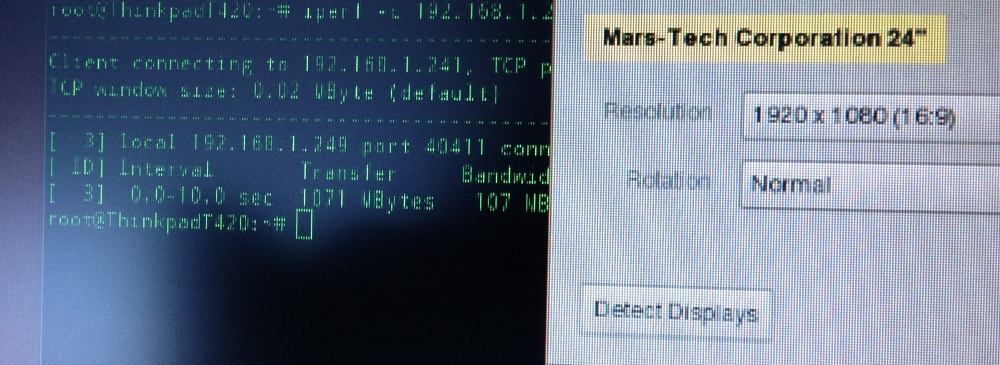
As you can see in the screenshot above, I started to average 110 Megabytes per second which is near the Gigabit's theoretical limit of 125 MB/s.

Now, when I drop it back to normal frames of 1500, you can see my network speed drop to normal of 65 MB/sec.


Changing to Jumbo Frames can also have undesired consequences. If your other client computers do not have Jumbo Frames, performance will suffer. For example, if you are connecting an iPad or Android device to your Pogo via Samba, there is no way to change Jumbo frames on most mobile devices.

In some cases, mismatch MTUs from client and server produced disastrous results. So YMMV. See below. 2.58 MB/sec.


You may be wondering why bother with network speeds when USB disk access is slow (next section).
Well, with faster Gigabit, you can network mount shares from other sources into your Pogoplug. For example, if you plan on building a Squeezebox music server and just the server itself, you can NFS mount from another file server. The same goes with running a torrent server and saving the files elsewhere. Importantly, if you have multiple disk with multiple shares, you want to ensure each client is not using up all the bandwidth.


Disks Considerations:

The most important thing that affects PogoPlugs (and Linux in general) is the filesystem you plan to use. Native  EXT3/EXT4 is the only way to go.

NTFS and FAT32/ExFAT is not recommended if you want speed. Fuse based Filesystems have to go through several layers.  NTFS and ExFAT is nice because you can store files larger than 4GB. However, Linux EXT filesystems also support large files as well.


The only problem with using EXT3/EXT4 is you can't easily unmount your USB drive and connect to non-Linux running computers. If your main platform of choice is Windows, you may want to stick with using NTFS. I have plenty of Linux computers around the house at my disposal so this is not an issue.

Just for comparison,using the same drive (a 1TB Western Digital Passport drive), NTFS was a slower. Especially in writes, it was horribly bad at 6.5 MB/sec vs 27 MB/sec using EXT3

Here are NTFS disk benchmarks


and EXT3.


I use DD to write and test the same drives. If you plan to use the Pogo as a dedicated server, it is highly recommended to use EXT3 or EXT4.

This also translates over to Network file access. Using Blackmagic's Speed Test on a Macintosh with Samba, I see similar results.


And with EXT3


Interestingly, using Netatalk, I was getting close to 35MB/sec reads.

Encryption will also take your speeds down quite a bit. With SCP/SFTP, you will only get around 5 MB/sec.


NFS did not really fare any better. The best I could get is 8 MB/sec.


In short, if you want the best performance, stick with EXT3 and Samba. USB 2.0 is really the bottleneck with PogoPlugs. They're great at what they do but dont expect them to replace a Synology or any other dedicated NAS for heavy duty work. 25-35 MB/sec is pretty respectable for a USB drive hosted NAS. Backups, Rsync, and Time Machine do not require much more. Then again, a Pogo plus Harddrive consumes 10 watts!

Hopefully this has changed with Series 4 of the PogoPlug. The V4 has a USM SATA dock connector and USB 3.0. However, unlike the Classic Pogos, they don't go for $15-20.
I have one on order and plan to report back soon.


Monday, March 4, 2013

GeChic on-lap 2501m portable 15" monitor review


This is an interesting and highly unique monitor that deserves a review.


Summary: This is a laptop screen without the laptop. It is a battery powered HD 1336x768 15.6" monitor with HDMI, MHL and optional VGA inputs. It runs off battery or powered via USB. In short, a highly portable spare 15" monitor. This monitor can be purchased from NewEgg for $250.

As you can see below, a single MHL cable is all that is needed to display from a Galaxy Nexus. Add a bluetooth keyboard and you have yourself a portable computer. The MHL cable even charges the phone. The picture above with the Macbook shows it can be used as a secondary display with HDMI. Everything is running off battery. It can be charged via USB as well.


Preface:

I was looking for a spare monitor for various projects I've been working on. No one sells a DVI/HDMI/VGA monitor under 15" anymore. Sure, you can get a used, refurb 15" Dell LCD on eBay that will be strictly VGA. There are a few 7-9" Liliputian monitors advertised as field monitors but they only have native resolution of 800x480/1024x600.

I thought about going the 720p TV route at the local Target/Walmart but those are still rather large. I also have a few small displaylink monitors that work great and only require a USB cable. Unfortunately, my Linux projects and old servers require VGA. I also have an itch to play with small embedded ARM devices like the Raspberry PI/MK802 Android sticks that require HDMI.
Hence my dilemma and it was easily solved by one company, GeChic.

They offer a 13" model for a modest $175 that accepts HDMI and is powered by USB.
Then, I saw a newer 15" model that was battery powered and also supports MHL (Mobile High DefLink) found in many new smartphones and tablets. Wow, this was the ticket to my dilemma.

And that is where we are now. Today, I'm going to give you my impressions of this highly unique product.

Impressions:

After reading many other reviews, this product addressed many of the shortcomings of the original 13" unit. It also appeared to be better than many of the Korean export Shimian MHL only 9.7" portable monitors. Unlike some of its competitors, this sports a 1336x768 resolution vs the Shimians or Liliputs at 1024x768 /1024x600. I'm not fond of that resolution but what else is there in this form factor? The GeChic are probably the best-in-class for this form factor.

Many of the other Korean/Chinese portable field monitors advertise being 1080p but when you read the find print, they are often only 1024x768 native and use scaling to accept 1080p video feeds. Translation, they look like crap.  This particular monitor will also take 1080p feeds and it also looks like crap. Any downsampling will give you a muddy image. It would awesome to get a Nexus10 or Ipad3/4 class monitor in the 9-15" size but those are not available. The GeChic will be fine for 720p content.

Physical:


The construction is rather cheap. There are Faux silver finishes and it has an extremely light feel. In fact, it is too light and brittle. This is essentially a laptop monitor without the laptop. The only thing protecting the screen is a flip-over plastic screen protector that acts as the base. You can get colorful replacement screen protectors in various colors.


All ports run off the right side of the front facing screen. Two micro speakers adorn the back.

As you can see, compared to an iPad, it is pretty big. In my opinion, it is rather large. 15.6" screen is pretty big to lug around as an accessory.


It pretty much comes with everything you need minus the VGA adapter. HDMI, USB,MHL cables, a USB Charger are all included. The green pieces you see are alternate base grips. There is also a smartphone holder clip you can attach to the front face.


Usage:
This monitor can be powered from USB (it also comes with a USB charger) or the built in battery. So far,everything is good except it did not come with a VGA adapter cable. That is another $13. The MHL port is a blessing and a curse. It charges my Galaxy Nexus and input videos in one single clean cable. Unfortunately, those cables are hard to find if you need a replacement. I could not find any extra dual-ended MHL cable online. All the ones I've seen are MHL-to-HDMI. So, if you lose the cable, good luck finding a replacement. HDMI is a standard micro HDMI-D that resembles a micro USB socket.


Onscreen display is standard affair. You can swap inputs, adjust brightness/contrast and the battery indicator is a nice touch.


Quality:

The screen is not going to blow your socks off. Actually,the display is mid-grade and offers a average adequate output. I knew this from the various reviews I've read. It is about the same quality as many 15.4-15.6 budget laptops you find at Staples or Best Buy in the 400 price range. It has similar quality to my wife's HP DV6 notebook.

Viewing angles is pretty much straight on. Colors are a bit muted. 1080p scaled resolution looks like crap. I guess it will be fine for watching movies off a Blu Ray player but I do not recommend it for text or computer usage at 1980x1080. It is best to stick with the default 1336x768 resolution.

Pictures below show how it would look like under a 1080p feed. Blurry. Native resolution at 1336X768 look fine and razor sharp.


However, average picture quality is not the reason to discount the product. The reason to buy this monitor is for the immense flexibility and portability.

I was imagining being able to use this as a portable monitor in the data-center; plugging into headless servers if needed. I could also turn my smartphone into a mobile workstation using MHL. The possibilities were endless. You can use this with XBOX/PS3 gaming consoles. Worst case scenario, you can use it as a portable secondary palette monitor. Most importantly, I no longer have to scramble and unseat an existing monitor to work on a project. Now, I could take out an old rack server or 10 year old PC in storage to refurbish in the garage with my battery powered GeChic.

Picture below is an excellent use case for this monitor. Connected to a MK802 Android stick and you have a portable workstation or thin client for fiddling around.


Battery Life: I've read claims of 6.5-9 hours from other various sources. Well, after 3 days of testing, I am getting well over 6 hours. I don't know how accurate the battery meter is but my phone shows it has been running over 8 hours with 1/2 charge left.


Unfortunately, it does take a while to charge up. Most use cases will probably entail using USB to power off your computer.


Competition and Conclusion:

DisplayLink monitors are the obvious direct competitors. Unfortunately, none of them can connect to a smartphone, XBOX, or DVD player. They're also problematic under Linux.  DisplayLink also uses USB to drive the video. More than often, video and gaming playback suffer under DisplayLink as it passes through the USB bus. You have none of those problems with this display.


Mobile Linux users can now rejoice! It runs great off my Ubuntu Thinkpad T420. Nor more Xorg nonsense with DisplayLink.


Another competitor would be the Motorola Atrix lapdock. You can jury rig the Atrix lapdock with various adapters to make it a secondary HDMI display. It also has the added benefit of keyboard with some hardware fiddling. They're also cheap if you can find them but the issue I have is the lack of VGA.

Hence, the GeChic is an extroadinary unique device. I can see it being used for tradeshows. A mobile app developer using it demo mobile apps off smartphones and tablets. It can be used as part of a toolchest in the data-center. It can also be used as an on-site field monitor for a videographer or photographer. Or, it can be given to kids as a monitor for their gaming console. Again, the possibilities are endless.


i7 3770K Gigabyte Ivy Bridge Hackintosh


I've decided to publish the result of my 3 months with a Hackintosh.
I have a few Macs and Macbooks around the houses and wanted a really modern, beefy, home test machine I would be using for various things. This box would be used for all sort of things but the ability to run as a hackintosh was a secondary motivating consideration. I would mostly be running ESXi and Linux most of the time. I also wanted a Mac with USB 3, Thunderbolt, 32GB of RAM, lots of drive bays, and eSATA. Hence, I decided on a Gigabyte motherboard with the new Ivy Bridge i7 3770K.

Well, to my surprise, my hackintosh is extremely well built and amazingly, insanely great!

Here is the technical run-down:


  • Motherboard: GIGABYTE GA-Z77X-UP5 TH w/ Thunderbolt
  • CPU:Intel Core i7-3770K Ivy Bridge 3.5GHz (3.9GHz Turbo) HD 4000 Graphics cooled w/ Cooler Master Hyper 212 cooler
  • GPU: MSI GTX 650 TI (Nvidia Kepler) w/ 1GB DDR5
  • Case: Cooler Master Scout ATX Mid Tower Case - 5 drive bays,4 internal bays
  • PSU: Corsair TX650 power supply
  • RAM: 32 GB of CorsairRAM
  • Storage: 240GB & 180GB Intel 330 SSDs for OSX and Windows 7. Seagate 3TB 7200 rpm for data drive.
  • LG Blu-Ray DVD Writer 
  • Display: Dual 24" Dell IPS UltraSharp Displays
  • Wi-Fi: TP-Link TL-WDN4800


I did careful research and I will share with you my findings and all the great things about this build.

First of all, this particular build is pretty much bullet-proof.
I have full SATA III 6Gbp/s speeds, Bluetooth 3 works, Wi-Fi works with the built-in operating system, iCloud/iTunes/App Store account works, and Thunderbolt (with a small caveat). The only caveat with Thunderbolt is that devices need to be plugged in and powered on before you boot the machine. That is the only small minor issue  I have with this build. Thunderbolt/DisplayLink display works too. Lastly, there is no DSDT file to mess with it. It is 95% Vanilla OSX. I remembered I had to do something with the boot flag to get the NVIDIA drivers to install. Once installed, the GPU works with CUDA extensions and acceleration for Adobe CS applications.

All I had to do was really follow Hacks by Alfa and read some posts on tonymacx86.

http://hacksbyalfa.com/post/28271035968/gigabytehackintosh

Some notes on my Build.


Get the TP-Link Wifi Card. Period. The ability to have the OS natively recognize the card and have air sharing and everything is awesome. Prior hackintoshes, I had to deal with 3rd party wifi drivers and silly applications to connect to Wi-Fi. I ending up junking  the free Wi-Fi card that came bundled with the Gigabyte motherboard. The TP-Link card is well worth the $30 bucks.

The Hyper 212 cooler is pretty good at keeping the 4-core, 8 thread i7 pretty cool. I never break 50c under heavy loads. I also think it is attributed to the Scout case and air-flow. There are 120mm fans everywhere. Air circulation is very good.


The case is an older design but it is perfect for my needs.It has 4 front USB 2.0 ports along with a front e-SATA panel on the top.

The Gigabyte motherboard has 6 or so rear USB 3.0 ports and comes with a front panel adapter for two more.

Inside the case, I have my dual Intel SSDs and 3TB Seagate drive for my onboard storage.
I also installed a Syba dual dock for quick removal of drives.It allows me to quickly swap out a 2.5 and 3.5" at the same time.


The Syba dock also gave me another two front USB 3.0 ports. With the Syba dock, I have a total of 10 USB 3.0 ports, 4 USB 2.0 front ports.


So with the rear eSATA, front eSATA,dual drive dock, I can randomly swap our 4 drives externally. I pretty much used all my SATA connectors and topped it off with an LG Blu-Ray ripper.


I figured since I used up all my SATA ports, I'd do the same for USB.I forget how many headers I have but I was able to fit another two USB 3.0 internal ports. I used them to store a USB wifi dongle for Linux (running dual wifi) and a bootable "safe OSX fix disk." This is my safety plan in case my OSX gets hosed, I can easily boot off the USB and fix whatever I need to. I haven't had to do anything since. Software and OS updates have worked fine.


The case is pretty awesome in the fact it has handle. I never realize how cool it was and I can easily lug this box around.


Since I had so many extra 5.25" front panel bays, I put in a front cubby case to store things.


Performance.


Well, it runs very fast. It is faster than my 2012 Thunderbolt 27" i5 iMac. In fact, it doubles the geekbench scores. This CPU is easily clockable. I'm getting 16,000 + geekbench easily at 4 GHZ. The iMac only scores 8229. With SATA III 6Gb/s and the Intel 330 SSDs, I am seeing 400 Megabyte/sec writes and close to 500 reads. The Nvidia GTX 650 TI isn't going to win gaming benchmarks but is more than good for me to drive large monitors. It is also accelerated for many pro apps which is nice.

Thunderbolt.

The main reason to get this motherboard is the no DSTD build. However, Thunderbolt may be another reason. Like I mentioned earlier, Thunderbolt works awesome on this. Compared to my iMac and Macbook Pro, it is just as fast connecting to a Thunderbolt SSD or my Drobo 5D.
In fact, running Windows on this same machine wasn't even as pleasant. My Drobo 5D is not recognized under Windows. For displays, I have to enable the built in HD4000 Intel graphics to power a Thunderbolt/DisplayLink display.


Conclusion.

Well, I love this box but to tell you the truth, I prefer to use my iMac. The simple truth is the 2560x1440 screen. Running two 1080p 24" Dell doesn't cut it. The hackintosh simply blows everything I currently have. I loved this hackintosh when I was testing it out in the office with 30 and 27" Cinema Displays. I think this will all change when I come up with the cash to buy me a new 27" or 30" screen for the house. I may have an eventual need to re-purpose this machine for one of my other projects I am working on. I have to admit the allure of running a fast macintosh on cheap commodity hardware is very alluring.

Will this be better than a Mac Pro? Well, yes and no. Mac Pros run full on Xeon Processor rigs with ECC (Error Correction memory modules) and you can go way higher than 32GB of RAM. ECC Ram make them by definition, superior rigs for day-to-day workflow. Xeons can come in multiple socket CPU configurations and you get up to 12 cores. My i7 is still only a consumer grade 4-core CPU.  The Xeons also come with more PCI-e lanes (I believe 40) for more dedicated cards. Hence, there is a very good reason those Macs are aptly named "Pro" machines for a reason.  However, current Mac Pros are not cheap and don't have the niceties this Ivy Bridge rig has. Namely the USB 3.0, Thunderbolt, and multiple SATA 6 Gb/s connectors. If you are a serious professional and make a living using Mac products, get a real Mac. They pay for themselves in real billable and projects.

I've thought about doing an Xeon build but that would have been way above my price range.  At that point, I would rather get a real Mac Pro. Furthermore, I haven't seen any Xeon Custo-macs with Thunderbolt and the type of I/O this machine has.

And this is where the dilemma comes in. These hackintoshes simply offer more than the Mac Minis and iMacs. This is where I believe Apple should make a mid-range "Performa" line using consumer Ivy Bridge and future Haswell architecture. Not everyone needs XEON class machines for their homes.

In the ailing days of pre-OSX Apple, I miss my original Power Computing clone Mac. I remember getting a few StarMax and Power Computing "Mac clones" that offered great expandability and affordability. Those too were insanely great machines. Anyone remembered this guy? This is what the world needs now. Cheap affordable OSX based computers.