I've had some time to play with the Drobo 5D; filling up about 6TB worth of data (out of 10.89TB in my 5X3TB setup). I've been using it in a mix-use environment. I think I have enough time to form an opinion. So here is my non-professional, regular end-user hands on review of the new Drobo 5D Thunderbolt / USB 3.0 raid box.
Introduction
The device was originally announced during the summer and there was a series of delay, waiting and anticipation. Drobo did not release performance figures until they neared shipping. This was not a very promising introduction.
I was ready to give up and go elsewhere. The Pegasus R4 is the closest competitor to the Drobo and I'm sure it will be cross-shopped. The Pegasus R4 (4 bay RAID) system can be had for $1,000 with 4TB of disks ($985 at
Provantage link, $1100
amazon link).
The Drobo 5D is $850 and it comes bare (enclosure-only) but does include a Thunderbolt cable (which is worth $50 by itself). You will need to load it up with drives. If you are a savvy shopper, you can start off with
three 2TB drives to give you 3.63TB of useable data (according to the online calculator) to match the Pegasus R4's storage capacity. So if you shop around, three 2TB will cost about an $300 (with heavy slickdeals-like discount and bargain hunting) which still makes it more expensive than an R4 setup.
Even though the Drobo 5D is more expensive (with drives), you do have 5 bays vs R4 only having 4 bays. You also have the added benefit of USB 3.0 which the R4 lacks. This broadens the use of this device over a Thunderbolt only system. With 5 bays, you have the potential of filling it up with 4TB drives; giving you around 14.5TB useable storage (from 16TB). That in itself is very compelling.
You can start off cheaper with a Drobo because you can add drives at any time. But, I doubt anyone buying a Drobo at $850 will skimp out by using 1 or 2 drives.
So why would I go out and buy this device? Well, I was already allotted a budget and "gifted" funds to buy one from a job I did over the summer. In short, I had to buy one or return the bonus funds I got from that job.
The Drobo Sales Pitch
Drobo claims this device will yield 400 MB/s reads with 256 MB/s writes on average. That doesn't sound as compelling as their competition who posts higher Megabytes per second. Rather, Drobo prefers to bench based on I/O per seconds (IOPS). They believe that "real-world" performance is where the 5D will shine.
They explain this in detail on their performance page:
http://www.drobo.com/how-it-works/performance-professional.php
In short, they claim:
"While benchmarking give you a good indication of how well a storage device performs when it’s healthy and for a single task, it is still not a replacement for real-world performance. Benchmarks are nice, but real-world performance is everything."
Real-world performance includes a mix workload; copying various random small files in addition to large bulky files. This is where the IOPs figure comes into play. If you are copying a Photo Library folder with lots of small thumbnails or large volumes of small text files (say a web project), your transfers will be slower than if you normally copy something like large video files. I've seen this happen in the real world where I copied GIT repo of a website with thousands of files and it did indeed take longer than copying large movie files.
They claim
400 to 1280 IOPS. For comparison, some single SSDs are rated at 40,000 to 80,000 IOPS. The Samsung 830 SSD has benched 4K random read IOPS of
80,000.
Other HDD manufacturers do not bench on IOPS and I could not find any reviews on the net to compare the Drobo 5D to when it comes to comparable storage/raid redundancy.
If you are used to thinking in Megabytes per second, you need to acclimate yourself to IOPS.
The Drobo uses a form of RAID which is similar to RAID5/RAID6/RAIDZ. They call it
Beyond Raid and it has a some unique characteristics both real and perceived. It provides single or dual disk redundancy. This in itself is very important. This is a redundant RAID system.
Unlike traditional RAIDs, you can mix-and-match drives sizes (called Mix drive utilization). You can also grow your array at any time buy swapping out smaller drives for larger ones. You can start off with 1TB drive, add 2TB in a few months, or opt to mix and match with 3 and 4TB drives as prices drop. This provides un-paralleled flexibility.
Unlike other RAID systems, Drobo implements their version of data-tiering. Tiering, not to be confused with SSD caching, basically will automatically stores the files that require faster access on SSDs. The system automatically tunes itself and migrate data across SSD/HDD depending on usage. This is similar to the "Fusion" drive technology that Apple recently announced for their new iMacs/Mac Minis. Like the Apple's Fusion drive, the Drobo requires an SSD in the form of a mSATA drive that is installed in the bottom bay. This is the key to increasing IOPS performance.
Their pitch on data-aware tiering can be found here:
http://www.drobo.com/how-it-works/data-aware-tiering.php
Using SSDs for acceleration, smaller and random reads benefit significantly while the larger HDDs are used for storing larger data. This whole process is automated. Transactional tiered data goes to SSD and bulk data goes to platter drives. I can see the benefits for databases and virtual machines.
For a non-technical person or someone unfamiliar with RAID technologies, the Drobo 5D is a simple and easy to use system. In theory, you can't go wrong. You won't get the fastest drive setup but you will get ease-of-use and a rich feature-set. Automated data-tiering is a very compelling proposition.
The things I like
- Battery backed cache. This is found in more expensive RAIDs and helpful in case of power failure.
- The software has a nice GUI interface with tools like email notifications.
- Two Thunderbolt ports for daisy-chaining and it does indeed work well.
- Black thunderbolt cable that is slimmer than Apple's cable. Where can I buy another?
- Ability to mix drives and upgrade in the future.
- Thin Provisioning.
- Ability to boot from Drobo.
The Competition
Drobo's competitors here are other DAS (Direct Attach Storage) units rather than NAS like the Synology.
As I wrote earlier, the Pegasus R4/R6 are the closest competitors to the Drobo 5D. The Pegasus R4/R6 yields 635 MB/Sec read 535 MB/sec writes. R6 averages both 680 MB/sec read/writes.
You can get up to 1GB /sec when you load them with SSDs. Impressive indeed.
Reading Links:
The Pegasus units can be configured in different RAID types to suit your needs.
In my opinion, the HDD based Thunderbolt system yields the biggest bang for your buck. You get better than eSATA/USB 3 and in some cases near or exceeding SSD territory for modest money.You can't buy 10TB worth of SSDs or a SAS based RAID cheaply. This is why the Drobo comes in. You definitely have the ability to have lots of storage.
Testing
Let me preface by saying I am NOT a professional journalist or reviewer. I am enthusiast end-user and a normal consumer like you.
My source drive is a Crucial M4 512GB SATA 6.0Gb/s running on a Macbook with Mountain Lion 10.8.2. The Crucial M4 random reads bench at 45-50,000 IOPS (
http://techreport.com/review/20646/crucial-m4-solid-state-drive).
In short, my source copies will not be bottlenecked copying to the Drobo.
My Drobo 5D setup:
- Five Seagate ST3000DM001 3TB 7200 RPM 64MB Cache SATA 6.0Gb/s
- Crucial M4 mSATA 6gb/s 128GB SSD w/ latest firmware 01MG as the cache accelerator drive
My set-up gives me 10.89TB useable space (15TB of drive, actual size 13.64TB).
Knowing that the Drobo 5D will not bench that great using MB/sec, I attempted to evaluate this device on Drobo's premise of mix-real world usage. However, I will also present synthetic Black Magic numbers for reference.
In terms of USB 3.0 performance, this is what Black Magic shows. 90MB/s write 110-130MB/s reads.
I've gotten better performance with eSATA boxes like the OWC Elite Pro Qx2 connected via USB3-to-eSATA adapters. It would be unfair to compare this number to faster performing single drives because this is a redundant RAID set-up. However, the OWC Elite Pro Qx2 would also be in a RAID5 format so these numbers are not that great in terms of Black Magic benchmarking.
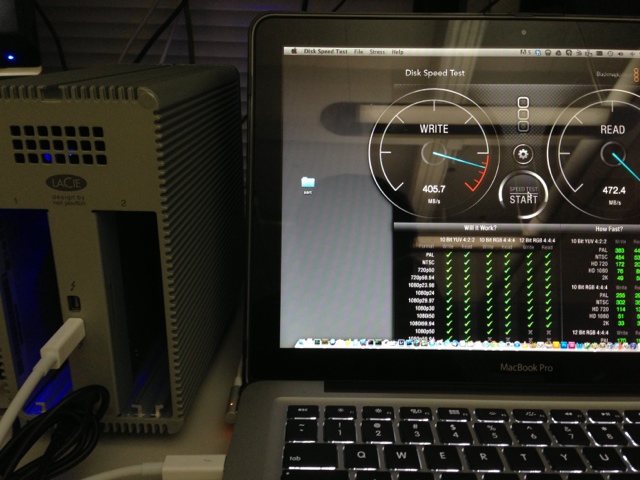
Next, Thunderbolt. the best I could muster over several tries were 210-240 MB/s writes and 290-300MB/s reads. This is actually good for a consumer RAID but fall short when compared to something like the Pegasus R4.
Again, these are just synthetic numbers that an application produces and is not indicative of real-world use. Im not a professional reviewer so I can't give you IOPs numbers.
To follow Drobo's assumption of real-world mix usage, I attempted to see how well it performed copying a mix of different file types.
Instead of trying another synthetic test, I did it the old fashion way. I timed it. My test is all writes. I am more concerned about fast the drive writes my copy rather than how fast it reads.
Instead of copying large 30GB files to see the sustained transfer rate, I opted to try a typical usage of copying my photo backups. This s a 28.76GB folder of 2,277 photos in RAW format from my DSLR. This is 2-3 months of photos and typical usage example to test performance of copying a lot of medium sized files where the should Drobo shines.
I called this the Photo test.
I did another test with extremely small files. A webserver folder with 27,759 items clocking it at 1.5GB. These include small 5k HTML/Javascript files. So this would be a typical thing for a web developer to back up his/her files of a working project.
This is the WebTest.
I compared it with a bunch of different drives to get an idea how the Drobo fared. Obviously, it won't be as fast as SSDs but I tested with some SSDs just for reference.
- Samsung 830 SSD via USB 3.0 in an Oyen Mini-Pro enclosure (with ASMedia 1051e chipset).
- Samsung 830 SSD w/ Seagate Thunderbolt Adapter
- Internal Seagate Momentum XT 2.5 " 7200 rpm drive. This is the Hybrid XT drive.
- 5400 rpm USB 3.0 Seagate Go Flex portable drive
- 5400 rpm Firewire 800 Seagate Go Flex portable drive
- USB 3.0 Hitachi portable 2TB drive. 5900 rpm.
- HDD Thunderbolt comparison against a LaCie 2Big 4TB in RAID 0.
Here are the results... I will give a summary and interpretation below.
Photo Test. Copying 28GB of Photos.
Shorter bars are always better.
Web Test. Copying a folder of HTML/Javascript/PHP files.
Full Chart.
|
Device |
Time (min.sec) |
| Photo Test |
USB3.0-Samsung SSD |
1.54 |
| Photo Test |
Thunderbolt-Samsung SSD |
1.30 |
| Photo Test |
HDD Seagate 7200 rpm internal drive |
6.18 |
| Photo Test |
5400 rpm 2.5 Go Flex USB 3 |
6.18 |
| Photo Test |
5400 rpm 2.5 Go Flex via Firewire 800 |
6.18 |
| Photo Test |
5900 rpm external Hitachi USB 3 |
10.02 |
| Photo Test |
LaCie 2 Big Thunderbolt 4TB |
1.47 |
| Photo Test |
Drobo 5D |
3.58 |
| Web Copy |
USB3.0-Samsung SSD |
2.28 |
| Web Copy |
Thunderbolt-Samsung SSD |
.27 |
| Web Copy |
HDD Seagate 7200 rpm internal drive |
.41 |
| Web Copy |
5400 rpm 2.5 Go Flex USB 3 |
12.04 |
| Web Copy |
5400 rpm 2.5 Go Flex via Firewire 800 |
1.36 |
| Web Copy |
5900 rpm external Hitachi USB 3 |
14.41 |
| Web Copy |
LaCie 2 Big Thunderbolt 4TB |
.28 |
| Web Copy |
Drobo 5D |
1.04 |
Test observations.
Going in, I knew the SSDs will smoke any HDD system. That is a given.
The Drobo 5D performs decent in my view. It is not super fast and not slow. The LaCie 2big Thunderbolt simply smokes it but we have to remember, the LaCie is a Striped RAID vs Redundant Array. Also, the LaCie is 4TB/6TB vs 10TB (you can go up to 16TB on the Drobo).
If you notice, Firewire smokes the USB implementation when it came to small 4k-10K file web copies. This illustrates the inefficiencies of the BOT (Bulk-Only-Transport) protocol of USB 3.0.
Watching the progress bar on a regular USB 3.0 drive was painful to watch as it struggles with smaller files.
12-15 minutes for a 1.5GB folder!
The Drobo 5D performed surprisingly well. Like I said earlier, the synthetic benchmarks will not give you a realistic idea of how the drives will perform in the real world.
So is the Drobo 5D fast?
I wish I had a Pegasus R4 to compare. I ran this test about 3 times on fresh formatted systems. I also skipped testing the Drobo 5D via USB 3. It simply wasn't that fast with USB 3.0 in my view.
It did surprisingly well where it was suppose to - with smaller files. If you are copying 4-6GB Blu-Ray ripped movies, there will be other things out there that will out-run it.
How it fares will ultimately depend on how you plan to use the device. I would also add that my test may not be indicative of your use. The device is suppose to automatically tier the data upon repeated use and you might fare better in a different workload environment.
The speed perception will also depend on what you are used to. I've been living with SSDs in my day-to-day life that I'm very spoiled. I carry about 4-5 SSDs in my carry bag. The LaCie 2big is also a very fast HDD Thunderbolt enclosure. Read and writes average 300+ MB/sec. But I have to remind myself that the LaCie is a
striped RAID and not a redundant RAID like the Drobo 5D. The redundant RAIDs I've used are the OWC Mercury, MediaSonic, and Sans-Digital eSATA based systems for consumers. At RAID5, they often top out at 150-200 MB/sec. So when you compare it to the Drobo 5D, the Drobo is indeed faster. However, those enclosures are $300-400 versus a $850 Drobo.
Is this for you?
First and foremost, you need to have a Thunderbolt equipped machine to be in the market for this device. The USB 3.0 is a nice add on for future proofing but it isn't the main reason to buy this device.
Should you use this device in a network share environment? No. This is not a NAS or even recommended as storage for your SOHO server. I've read of people planning to use this device ( and other Thunderbolt RAID systems) as storage for mac mini server set-ups. With Gigabit's theoretical 125 MB/sec limits, this device is over-kill on single NIC servers. You'll need Fast multiple NIC teaming or 10GbE networks to properly use this for multiple clients. Otherwise, there are mini-SAS eSATA solutions. Look elsewhere for a dedicated NAS system for your SOHO use.
There will be users who buy the Drobo 5D as their primary backup system. Like with all backups, it is not a good idea to have all your eggs in one basket because with one catastrophic failure, you lose everything. There are countless horror stories on RAID failures. Drobo is not unique . If you plan to use this as your primary backup, please consider having additional offline or additional supplemental backups as well.
I think the buyers will most likely be creative professionals who need fast, large storage. They include photographers and video editors who need to move large files fastly. If you are planning to copy and archive your MP3 music collection, this is definitely over-kill.
My use case would be a mix usage with a heavy leaning on using it as a fast work drive. E.G. scratch drive, running Virtual Machines, Lightroom catalogs.
Drobo with other platforms.
Right now, Macintoshes have a monopoly in terms of Thunderbolt usage. I'll follow up in the future to give my opinion on using this with Linux (via USB 3.0).
You need to heavily weigh your needs and your usage to consider this device.
Filling up a Drobo is not cheap. 5x 2TB drives would cost you around $500 (if you can get the drives at $100 a piece) and this would yield you 7.26TB of usable space according to their
drive calculator.
Dont even bother with 1TB drives. The difference being $70 vs $100 2TB on sale, go for the 2TB or 3TB HDD drives. Hence, we are now talking about around $1350 to begin. This does not include the mSATA cache accelerator drive. With a 128GB mSATA cache drive, you are looking at $1500.
$1500 can buy you lots of drives, SSDs, and even a few RAID enclosures.
As for a redundant backup system, you may want to skip the Drobo 5D because I do believe the $850 is a bit pricey for that type of use. If you absolutely need to have something faster than your current backup system, then the Drobo 5D may be an option for you.
As for a performance oriented work drive, it is a tough call. The Pegasus R4 is a proven performer with little problems (according to end users and message boards). You can buy an R4 for your fast RAID5 and a few external USB 3.0 3TB drives for your secondary backups. Or you can buy a LaCie Big Disk (I got a 4TB refurb for $200) and a lot of spare 3-4TB external drives.
The picture below exemplifies this hard choice. $900 can get you a LaCie 2big, 2 SSDs, three 3TB USB 3.0 external drives (totaling 9TB) vs an empty bare Drobo 5D enclosure (with no drives). 13TB vs 0 on the Drobo.
For me, it boils down to this, how big of a scratch work drive do I need? If you need 6 TB and larger, the Drobo is a good buy.
There is no substitute for the fact you can get up to 16TB of storage with good speed. 200-350 MB/s is still very good.
If you are looking for a combination of both in terms of mix-use (backup drive and work drive), then you might buy the sales pitch Drobo is making.
As for me, I think a mix-setup that I currently have is more preferable: A fast 4TB cheap Thunderbolt striped RAID or SSDs for work disk and a NAS for backup along with multiple external drives/cheaper RAID setups.
If the Drobo 5D was $100-$200 cheaper, I would totally recommend it.
I'll probably end up keeping this device. I can always use the storage.
Update 2012-12-03: Thunderbolt does not work under Windows.
Read more on my blog post.